Understanding How Windows Handles Deleted Files

When you delete a file on Windows and it goes to the Recycle Bin, nothing about the file's actual content is destroyed. The file isn't shredded, scrambled, or wiped. Windows renames it and moves it into a hidden folder, then writes a small companion file recording where it came from and when it was deleted. Both of those files live inside the Recycle Bin folder, not at the file's original location. The original location simply no longer has the file, and nothing is left there pointing to where it went. The moved content is a complete, intact copy and stays fully recoverable until the bin is emptied or the file is removed from it.
This matters in both directions. An investigator can pull a deleted file's original path, its size, the exact moment it was deleted, and its complete untouched content straight out of the Recycle Bin without any recovery tooling. An attacker who understands the same mechanism knows to avoid the Recycle Bin entirely because a permanent delete leaves none of these artifacts behind (there are other forensics methods to recover files if bytes are not excessively overwritten but that is a different topic).
Everything below can be run on a Windows machine to watch the mechanism work. The walkthrough uses C:\temp as the working directory and a made-up file extension so the commands match only the demo files and nothing else on the system. If C:\temp doesn't exist, create it once.
New-Item -Path "C:\temp" -ItemType Directory -Force | Out-Null;The Recycle Bin is a real folder on disk
The Recycle Bin is an ordinary hidden folder named $Recycle.Bin at the root of each drive. Inside it, every user account on the machine gets its own private subfolder, named after that account's Security Identifier (SID). A SID is the unique string Windows uses internally to identify an account, and it looks like S-1-5-21- followed by a long series of numbers.
Get-Item 'C:\$Recycle.Bin' -Force | Select-Object FullName, Attributes;
Get-ChildItem 'C:\$Recycle.Bin' -Force | Select-Object Name, FullName;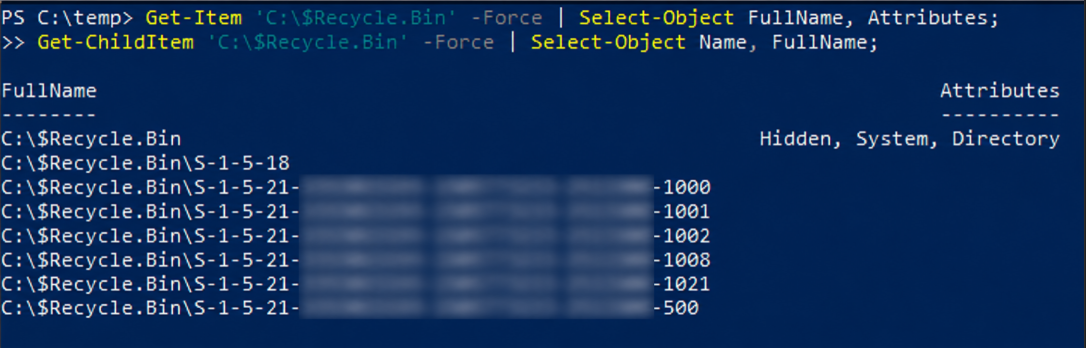
The reason one user cannot see another user's deleted files is simply that they are stored in completely separate folders, one per SID. To find the subfolder belonging to the current account, ask Windows for the current SID and build the path.
$mySID = [System.Security.Principal.WindowsIdentity]::GetCurrent().User.Value;
$rbPath = "C:\`$Recycle.Bin\$mySID";
Write-Host "Your SID:         $mySID";
Write-Host "Your Recycle Bin: $rbPath";
Write-Host "Path exists:      $(Test-Path $rbPath)";
Deleting a file creates two files
Create a test file, then delete it through the normal path so it lands in the Recycle Bin.
$testPath = "C:\temp\recycle_demo.rbtest";
"This is demo content for Recycle Bin forensics." | Out-File $testPath;
Get-Item $testPath | Select-Object FullName, Length, LastWriteTimeUtc;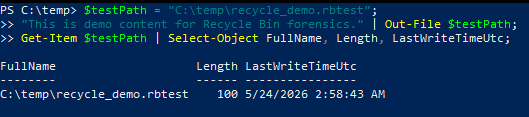
Now delete it. Open C:\temp in Explorer, right-click recycle_demo.rbtest, and choose Delete. Do not use Shift+Delete, which skips the Recycle Bin entirely. After deleting, look inside the Recycle Bin subfolder for the file pair.
$mySID = [System.Security.Principal.WindowsIdentity]::GetCurrent().User.Value;
$rbPath = "C:\`$Recycle.Bin\$mySID";
Get-ChildItem $rbPath -Force | Where-Object { $_.Name -match '\.rbtest$' } | Select-Object Name, Length, LastWriteTimeUtc;
Every deleted item produces exactly two files. They share a random suffix in their names, and that shared suffix is the only thing linking them together. There is no database, no registry key, no index. Just a naming convention.
| File | What it holds |
|---|---|
$I file | Metadata only. The original path, the original size, and the deletion timestamp. A small fixed-structure file, regardless of how large the original file was. |
$R file | The actual deleted content, byte for byte. Same size as the original file. This is the original file, renamed. |
The reason there are two files, and why they are kept apart, comes down to keeping the recoverable content clean. When Windows moved the file into the bin, it renamed it to that random suffix, which means the file itself no longer carries any record of its original name, its original location, or when it was deleted. That context has to be stored somewhere, so Windows writes it into the companion $I file. Putting the metadata in a separate file rather than attaching it to the content is what lets the $R file stay byte for byte identical to the original. On restore, Windows reads the original path out of the $I file and moves the $R file straight back to that location with no modification needed. The split keeps the recoverable content untouched and the metadata readable without having to parse through the content to find it.
The $R file is the original file, unchanged
Windows did not encrypt, compress, or wrap the deleted file. It renamed it and moved it. That is the entire operation. The proof is that the $R file's content reads back exactly as the original, and its hash is identical to what the original would produce.
$mySID = [System.Security.Principal.WindowsIdentity]::GetCurrent().User.Value;
$rbPath = "C:\`$Recycle.Bin\$mySID";
$rFile = Get-ChildItem $rbPath -Force | Where-Object { $_.Name -match '^\$R.*\.rbtest$' };
Get-Content $rFile.FullName;
Get-FileHash $rFile.FullName -Algorithm SHA256;
No recovery tool was involved. Reading a deleted file out of the Recycle Bin is as simple as reading any other file, because it is just another file sitting on the disk. This is exactly why keeping the metadata out of the $R file matters. Because nothing was added to the content, its hash still matches the original, which is what makes it trustworthy as evidence and clean to restore.
The $I file stores the metadata as raw bytes
The $I file holds the metadata, but not as readable text. It stores numbers as raw bytes in fixed positions. Trying to read it as text produces garbled output, which is expected.
$mySID = [System.Security.Principal.WindowsIdentity]::GetCurrent().User.Value;
$rbPath = "C:\`$Recycle.Bin\$mySID";
$iFile = Get-ChildItem $rbPath -Force | Where-Object { $_.Name -match '^\$I.*\.rbtest$' };
Get-Content $iFile.FullName;
The reason it's garbled is that a binary format stores values in fixed-width fields at fixed positions, called offsets, so that a program reading the file can jump straight to any value without scanning through text. To see the structure, load the raw bytes and print them as a hex dump.
$mySID = [System.Security.Principal.WindowsIdentity]::GetCurrent().User.Value;
$rbPath = "C:\`$Recycle.Bin\$mySID";
$iFile = Get-ChildItem $rbPath -Force | Where-Object { $_.Name -match '^\$I.*\.rbtest$' };
$bytes = [System.IO.File]::ReadAllBytes($iFile.FullName);
Write-Host "Total size: $($bytes.Length) bytes`n";
for ($i = 0; $i -lt $bytes.Length; $i += 16) {
    $end = [Math]::Min($i + 15, $bytes.Length - 1);
    $hex = ($bytes[$i..$end] | ForEach-Object { $_.ToString('X2') }) -join ' ';
    $ascii = ($bytes[$i..$end] | ForEach-Object { if ($_ -ge 32 -and $_ -le 126) { [char]$_ } else { '.' } }) -join '';
    '{0:X4}  {1,-48}  {2}' -f $i, $hex, $ascii;
}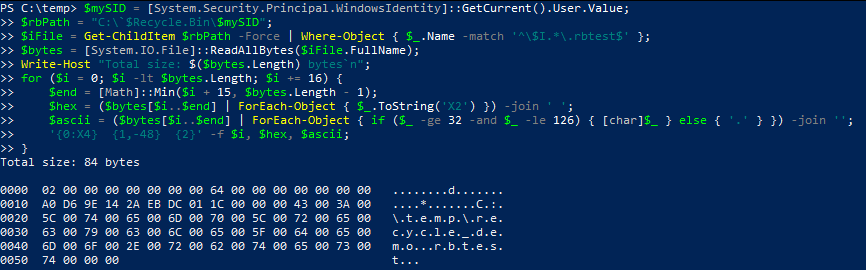
In that output, the left column is the byte offset in hex, the middle is each byte's value in hex, and the right column is the ASCII representation, where a dot means the byte is not a printable character. The next step reads meaning out of each section.
Decoding the $I file
Each piece of metadata lives at a known offset. Reading a number out of the byte array at a given offset is what BitConverter does in the code below. The $I format comes in two versions. Version 1 covers Windows Vista through 8.1. Version 2 covers Windows 10 and 11 and adds a field recording the length of the path string, which is why modern $I files are only as large as they need to be rather than a fixed size.
$mySID = [System.Security.Principal.WindowsIdentity]::GetCurrent().User.Value;
$rbPath = "C:\`$Recycle.Bin\$mySID";
$iFile = Get-ChildItem $rbPath -Force | Where-Object { $_.Name -match '^\$I.*\.rbtest$' };
$rFile = Get-ChildItem $rbPath -Force | Where-Object { $_.Name -match '^\$R.*\.rbtest$' };
$bytes = [System.IO.File]::ReadAllBytes($iFile.FullName);
$version = [BitConverter]::ToInt64($bytes, 0);
Write-Host "Format version:         $version";
$recordedSize = [BitConverter]::ToInt64($bytes, 8);
Write-Host "Recorded size:          $recordedSize bytes";
Write-Host "Actual `$R size on disk: $($rFile.Length) bytes";
Write-Host "Sizes match:            $($rFile.Length -eq $recordedSize)";
$fileTime = [BitConverter]::ToInt64($bytes, 16);
$deletedAt = [DateTime]::FromFileTimeUtc($fileTime);
Write-Host "Deleted at (UTC):       $deletedAt";
if ($version -eq 2) {
    $charCount = [BitConverter]::ToUInt32($bytes, 24);
    $originalPath = [System.Text.Encoding]::Unicode.GetString($bytes, 28, $charCount * 2).TrimEnd([char]0);
} else {
    $originalPath = [System.Text.Encoding]::Unicode.GetString($bytes, 24, 520).TrimEnd([char]0);
}
Write-Host "Original path:          $originalPath";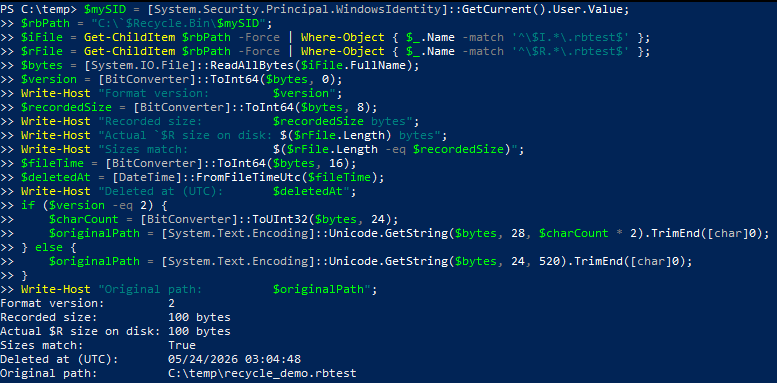
Three things in that output are worth checking against the hex dump from the previous step. The recorded size should match the $R file's size on disk. The deletion timestamp should match when you actually deleted the file. The original path should match exactly where you created the file. That original path is stored as plain text inside the $I file. It is a record of where the file used to be, not a live link, and nothing at that old location points back here. The timestamp is stored as a Windows FILETIME, which is a count of 100-nanosecond intervals since January 1, 1601, and FromFileTimeUtc converts it to a readable date.
The full layout of the $I file:
| Offset | Size | Field |
|---|---|---|
| 0x00 | 8 bytes | Format version. 1 for Vista through 8.1, 2 for Windows 10 and 11. |
| 0x08 | 8 bytes | File size recorded at deletion, in bytes. |
| 0x10 | 8 bytes | Deletion timestamp, as a Windows FILETIME in UTC. |
| 0x18 | 4 bytes | Version 2 only. Number of characters in the path string that follows. |
| 0x1C | varies | Original full path, stored as UTF-16. In version 1, the path starts at 0x18 as a fixed 520-byte buffer instead. |
The link between $I and $R is just the shared suffix
There is no pointer or lookup table connecting the metadata file to its content file. Strip the two-character prefix ($I or $R) off each filename, and what remains is identical. That shared suffix is the entire linking mechanism. It is what lets Windows pair a piece of metadata with the right content when it builds the Recycle Bin view or restores a file.
$mySID = [System.Security.Principal.WindowsIdentity]::GetCurrent().User.Value;
$rbPath = "C:\`$Recycle.Bin\$mySID";
$rFile = Get-ChildItem $rbPath -Force | Where-Object { $_.Name -match '^\$R.*\.rbtest$' };
$iFile = Get-ChildItem $rbPath -Force | Where-Object { $_.Name -match '^\$I.*\.rbtest$' };
$rSuffix = $rFile.Name.Substring(2);
$iSuffix = $iFile.Name.Substring(2);
Write-Host "`$R suffix: $rSuffix";
Write-Host "`$I suffix: $iSuffix";
Write-Host "Match:     $($rSuffix -eq $iSuffix)";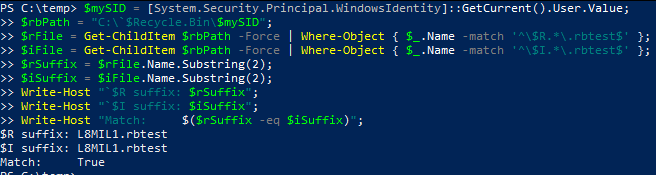
For an investigator, this has a practical consequence. If the recorded size in the $I file does not match the actual size of its paired $R file on disk, the content file was modified after deletion. The metadata records what the file was at the moment of deletion, and the content file should still agree with it.
A permanent delete leaves nothing behind
The whole mechanism above only exists because the file went to the Recycle Bin. A Shift+Delete, or a command-line delete, skips the bin entirely and produces no $I file, no $R file, and no metadata of any kind. To prove it, count the records before and after a permanent delete.
$mySID = [System.Security.Principal.WindowsIdentity]::GetCurrent().User.Value;
$rbPath = "C:\`$Recycle.Bin\$mySID";
"This one will be permanently deleted." | Out-File "C:\temp\no_trace.rbtest";
$before = (Get-ChildItem $rbPath -Force | Where-Object { $_.Name -match '\.rbtest$' }).Count;
Write-Host "Record count before: $before";
Now permanently delete the file. In Explorer, select C:\temp\no_trace.rbtest, press Shift+Delete, and confirm the prompt. Then count again.
$mySID = [System.Security.Principal.WindowsIdentity]::GetCurrent().User.Value;
$rbPath = "C:\`$Recycle.Bin\$mySID";
$after = (Get-ChildItem $rbPath -Force | Where-Object { $_.Name -match '\.rbtest$' }).Count;
Write-Host "Record count after:  $after";
Write-Host "New records created: $($after - $before)";
Zero new records. The Recycle Bin has no knowledge the file ever existed.
What sends a file to the Recycle Bin, and what doesn't
The Recycle Bin is a convenience layer, not a guarantee enforced by the file system. Whether a deletion lands in the bin comes down to which delete operation the program uses and how it uses it, not whether the program is Explorer.
Windows offers two kinds of delete operation. The shell delete functions can send a file to the Recycle Bin, but only when the caller sets a specific "allow undo" flag. Without that flag, even these functions delete permanently. The direct file system delete function never uses the Recycle Bin at all, and Microsoft documents it as the way to guarantee a file is not placed there. Explorer sends files to the bin because it uses a shell delete with the undo flag set. Command-line tools like del in cmd and Remove-Item in PowerShell delete permanently.
A file lands in the Recycle Bin when all of these hold. The deletion goes through a shell delete with the "allow undo" flag, it uses a full path rather than a relative one, the drive has a Recycle Bin that is enabled, and the file fits within the bin's size limit. When any of those is not true, the deletion is permanent and no $I or $R pair is created.
The common ways a deletion bypasses the bin:
| Method | Why it bypasses the bin |
|---|---|
| Shift+Delete in Explorer | Explicitly requests a permanent delete, so the shell omits the undo flag and skips the bin. |
Command-line deletion (del in cmd, Remove-Item in PowerShell) | These delete permanently and do not route through the bin. This is the most common method used by scripts and tooling. |
| A relative path passed to a shell delete | Even with the undo flag set, a shell delete that receives a file name without a full path deletes permanently. A full path is required to route through the bin. |
| File larger than the bin's capacity | Each drive's Recycle Bin has a maximum size. A file that exceeds it is deleted permanently instead of being moved into the bin. |
| Deletion on a file system with no Recycle Bin | Network shares and many removable or non-NTFS volumes do not provide a Recycle Bin, so deletions there are immediate. |
| Recycle Bin disabled for the drive | The per-drive "remove files immediately when deleted" setting turns the bin off, so every deletion on that drive is permanent. |
The command-line case is worth seeing directly, because it is how most automated and scripted deletions happen. Create a file, snapshot the record count, delete it from PowerShell, and count again.
$mySID = [System.Security.Principal.WindowsIdentity]::GetCurrent().User.Value;
$rbPath = "C:\`$Recycle.Bin\$mySID";
"This file is deleted from the command line." | Out-File "C:\temp\cmdline_delete.rbtest";
$before = (Get-ChildItem $rbPath -Force | Where-Object { $_.Name -match '\.rbtest$' }).Count;
Remove-Item "C:\temp\cmdline_delete.rbtest" -Force;
$after = (Get-ChildItem $rbPath -Force | Where-Object { $_.Name -match '\.rbtest$' }).Count;
Write-Host "Record count before: $before";
Write-Host "Record count after:  $after";
Write-Host "New records created: $($after - $before)";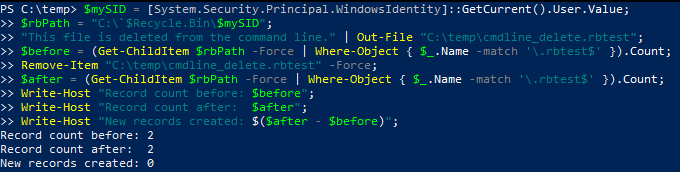
The file is gone and the Recycle Bin never saw it. This is the same outcome as Shift+Delete, reached a different way. An attacker covering their tracks will use a command-line delete or Shift+Delete specifically so this artifact never gets created.
What this means in practice
The Recycle Bin is one of the most generous artifacts on a Windows system. When a file went through it, you recover the original path, the original size, the exact deletion time, and the complete original content, all without any specialized recovery tooling and all directly from files sitting on disk. The two-file design is what makes this possible. The $R file gives you the content exactly as it was, and the $I file gives you the context that the renamed content can no longer carry on its own. Together they reconstruct both what was deleted and when.
The limitation is equally important. The Recycle Bin only records deletions that went through it. A permanent delete bypasses the mechanism completely and leaves no $I or $R pair. When investigating, the presence of a Recycle Bin record is strong positive evidence, but its absence proves nothing on its own, because the file may have been permanently deleted, may have been emptied from the bin already, or may have been removed by a tool or command that never used the bin. Other artifacts on the system, such as file system journals and MFT records, are where the rest of that story lives.
