Understanding Alternate Data Streams

You can attach arbitrary data to almost any file on Windows without changing how that file looks. The visible content of the file stays the same. The file's size stays the same. The attached data can be anything. Text, images, video, executable code, encrypted blobs, serialized objects, configuration files. Anything that can be written as bytes can be stored this way. Each piece of attached data is called an alternate data stream (ADS).
Attackers use alternate data streams to hide malware on a system, stage stolen data for exfiltration, smuggle payloads past hash-based reputation checks, and persist content that survives casual inspection of the disk. To make the scale of this concrete, a 100-byte text file can have 10 GB of movies attached to it as an alternate stream, and the text file will still report its size as 100 bytes and produce the same hash as before the attachment. The attached movies are fully readable to anything that knows the stream exists, while the visible file shows nothing unusual. The same mechanism that lets a legitimate application keep metadata next to a file lets an attacker park a second-stage binary on top of a benign-looking text file.
This is a feature of NTFS, the file system Windows has used by default since Windows NT. A freshly created file starts with one chunk of content, which is what you see when you open the file. NTFS allows additional named chunks of content to be attached to the same file. These additional named chunks are alternate data streams. There is no built-in rule forcing a file to have only one. A single file can hold many alternate streams at once, each independent of the others, each with its own content and size, all riding along with the same visible file.
Attaching new content to an alternate stream does not change the file's hash. Hashing reads only the file's main visible content, and the visible content isn't what changed. Standard tools that list directory contents don't show alternate streams unless asked to. The attached data is still there, still readable, and accessible to anyone who knows it exists. The file system keeps every alternate stream tied to the visible file as part of the same unit.
The general concept of attaching additional data to a file exists on other operating systems, but the implementations are not interchangeable. NTFS alternate data streams are technically forks, meaning each one can be opened, read, and written like a regular file, with no real size limit imposed by the feature itself. macOS's older HFS+ file system supported resource forks, which worked similarly. Modern macOS primarily uses extended attributes (xattrs), which are smaller key-value metadata pairs read and written all at once rather than streamed. Linux file systems including ext4, XFS, and btrfs support extended attributes that work the same way as macOS xattrs. The shared idea is "extra data alongside the file's main content," but the access patterns and size limits differ significantly between forks and extended attributes. Treating them as the same concept leads to wrong expectations about what each can hold and how applications interact with them.
What NTFS is doing under the hood
When a file is saved on a Windows NTFS drive, NTFS creates a record for that file in a big internal table called the Master File Table (MFT). The file's MFT record holds metadata about the file (its name, its timestamps, its permissions) and one or more streams of content.
Internally, NTFS stores each stream as a structure called a $DATA attribute. $DATA is the NTFS attribute type used for raw file content. It's a type, not a name. Both the visible (main) content of the file and any alternate streams are stored as $DATA attributes. What distinguishes one $DATA attribute from another on the same file is the optional stream name attached to each one. The main content has no stream name. Alternate streams each have a name.
You don't usually need to think about $DATA directly because tools and references hide it. But you'll see it show up in PowerShell output and in fully qualified path forms, so it's worth knowing what it means when you spot it.
References to streams are written with a colon between each part: filename, then stream name. The fully qualified form also includes the $DATA type at the end, although the short forms below are what people normally use.
| Form | What it refers to |
|---|---|
test.txt | The main visible content of test.txt. The content you see when you open the file. |
test.txt::$DATA | Same as above, written in fully qualified form. The double colon appears because the main content has no stream name, so the format becomes filename, colon, (empty name), colon, type. |
test.txt:notes | An alternate stream named "notes" attached to test.txt. This is the common form that tools display and that people typically type. |
test.txt:notes:$DATA | Same as above, written in fully qualified form. Valid but rarely typed. |
test.txt:Zone.Identifier | An alternate stream named "Zone.Identifier" attached to test.txt. Windows uses this stream to track download origin for Mark of the Web. |
Each stream on a file (main or alternate) has its own independent content and its own independent size. The file size that Explorer and most tools display is the size of the main content only. Attaching a 50MB blob as an alternate stream to a 10-byte text file leaves the displayed file size at 10 bytes. Attaching ten more alternate streams of various sizes still leaves the displayed size at 10 bytes.
When Get-Item -Stream * lists streams in PowerShell, the Stream property for the main content shows up as :$DATA (a leading colon plus the type, because the main content has no name to display). The Stream property for alternate streams shows up as just the stream's name.
What can live in an alternate stream
An alternate stream is just a sequence of bytes. NTFS does not care what those bytes mean. The same mechanism that stores a few characters of plain text can store any other kind of data.
| Type of data | Example use |
|---|---|
| Plain text | Application metadata, notes, configuration. Zone.Identifier is one example, formatted as INI text. |
| Structured data | JSON, XML, key-value blobs, serialized objects from any language. |
| Images, audio, video | Thumbnails, previews, additional media attached to the file as a parent container. |
| Executable code | DLLs, .NET assemblies, scripts. The use case commonly associated with malicious tradecraft. |
| Encrypted or compressed blobs | Anything an application wants to keep alongside the visible file without exposing it to casual inspection. |
| License keys, signatures, integrity hashes | Some applications historically used alternate streams to bind a license or signature to a file. |
There is no special handling per content type. An alternate stream containing a JPEG is the same as one containing text or executable code. What makes the stream useful is what reads it back, not how NTFS stores it.
Creating a file to work with
PowerShell is the cleanest way to work with streams. The commands in this walkthrough can be run as-is in a PowerShell prompt to follow along. The walkthrough uses C:\temp as the working directory. If that directory doesn't already exist, create it once with the following:
New-Item -Path "C:\temp" -ItemType Directory -Force | Out-Null;Now create a normal text file in that directory. At this point, the file has only its main content.
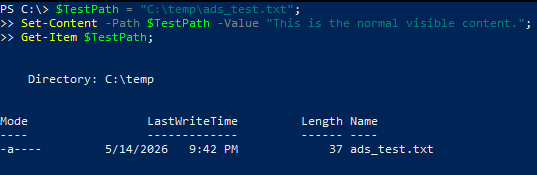
$TestPath = "C:\temp\ads_test.txt";
Set-Content -Path $TestPath -Value "This is the normal visible content.";
Get-Item $TestPath;
The Get-Item output shows the file with its size, last write time, and other normal attributes. It's a regular file with one chunk of content.
Capture the file's hash now, before any alternate streams are attached. This hash will be used later to confirm that attaching alternate streams does not change it.
Get-FileHash $TestPath;
Attaching the first alternate stream
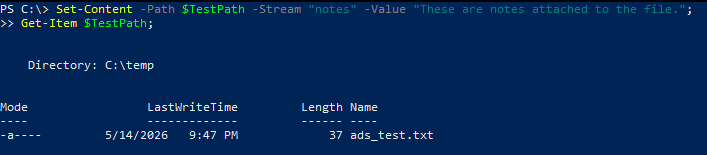
Now attach an alternate stream to the file. The -Stream parameter on Set-Content is what creates the alternate stream. The stream name "notes" is arbitrary. Any name that doesn't use reserved characters can be used.
Set-Content -Path $TestPath -Stream "notes" -Value "These are notes attached to the file.";
Get-Item $TestPath;
The second Get-Item returns the same output as before. The file's apparent length, modification time, and other visible attributes have not changed despite the new alternate stream being attached.
Listing all streams on the file
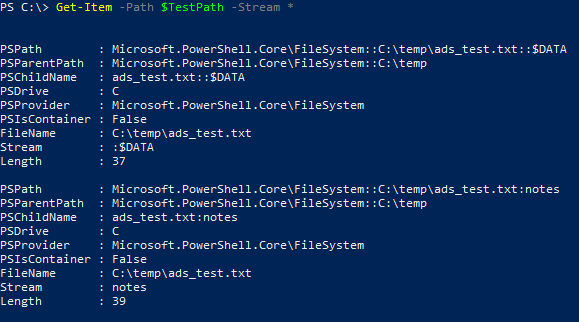
To see every stream attached to the file (the main content plus any alternate streams), use Get-Item with the -Stream * parameter. The asterisk is a wildcard that matches every stream.
Get-Item -Path $TestPath -Stream *;This returns one entry per stream on the file. The main content appears with stream identifier :$DATA (no name, just the NTFS type). The alternate stream appears as notes. Each entry has its own length.
Adding more alternate streams to the same file
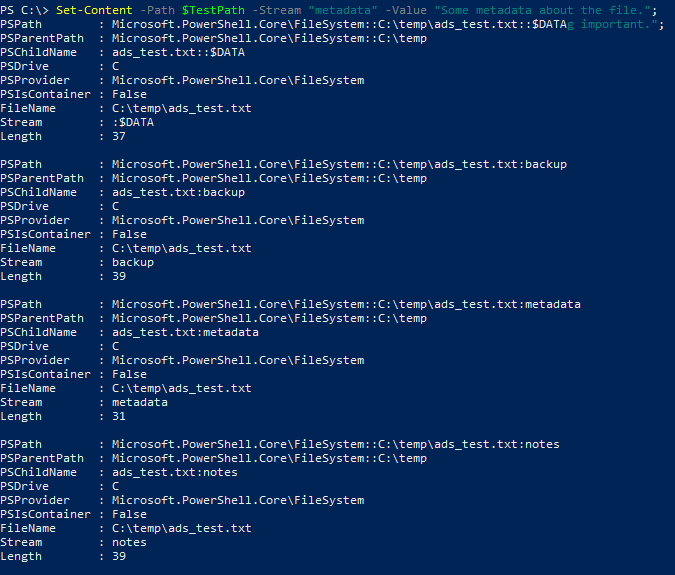
A file can hold many alternate streams at once. Each new alternate stream is independent of the others, and adding one does not affect any existing streams. Attach two more to demonstrate.
Set-Content -Path $TestPath -Stream "metadata" -Value "Some metadata about the file.";
Set-Content -Path $TestPath -Stream "backup" -Value "A backup copy of something important.";
Get-Item -Path $TestPath -Stream *;
The output now shows four entries. The main content and three alternate streams. All four are attached to the same file. The file's visible size and other attributes still reflect only the main content.
From the cmd shell, the equivalent listing command is dir /R. Without the /R flag, dir only shows the file's main content and the file looks completely ordinary. With /R, it lists alternate streams underneath each file.
dir /R C:\temp\ads_test.txt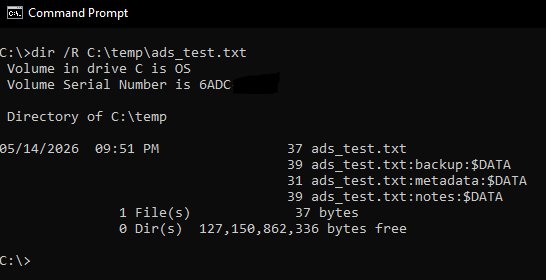
Reading a specific alternate stream
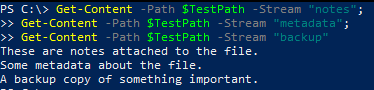
Get-Content with the -Stream parameter reads the content of one specific alternate stream. The main content of the file is unaffected by this.
Get-Content -Path $TestPath -Stream "notes";
Get-Content -Path $TestPath -Stream "metadata";
Get-Content -Path $TestPath -Stream "backup";
Each call returns the content of one alternate stream attached to the file.
Confirming the hash hasn't changed
The file now has three alternate streams attached to it on top of its main content. Run Get-FileHash again and compare the output to the hash captured earlier.
Get-FileHash $TestPath;The SHA256 value is the same as it was at the start, before any alternate streams were attached. Get-FileHash reads only the main content of the file. Attaching content to alternate streams does not change the file's reported hash because nothing in the main content has changed.

Hash-based reputation lookups, file integrity monitoring, threat intelligence checks by hash, and allowlist enforcement all typically work on the hash of the main content. A file that was originally clean can have arbitrary content attached to one or more alternate streams and still match the original known-good hash. The content attached to alternate streams, regardless of what it is, passes through entirely unexamined unless a tool explicitly enumerates streams.
Removing a specific alternate stream
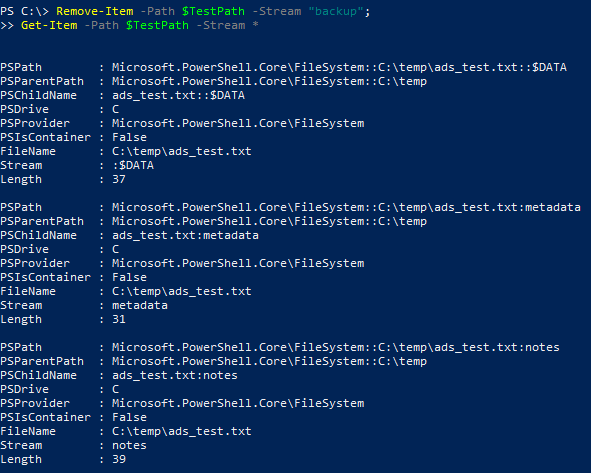
Remove-Item with -Stream deletes one specific alternate stream while leaving the rest of the file intact. The main content and any other alternate streams stay attached to the file.
Remove-Item -Path $TestPath -Stream "backup";
Get-Item -Path $TestPath -Stream *;
After this, the Get-Item -Stream * output shows the backup stream is gone but the main content and the other alternate streams are still there.
The Zone.Identifier alternate stream and Mark of the Web
The most common alternate stream encountered on a typical Windows host is one Windows itself attaches to downloaded files, named Zone.Identifier. When a browser, email client, or other application saves a file from the internet, the application attaches a Zone.Identifier alternate stream to the file it just saved. This alternate stream records where the file came from. It's the mechanism behind a Windows feature called Mark of the Web (MotW).
Mark of the Web is what tells Windows and other applications to treat a downloaded file with extra suspicion. The yellow "Protected View" bar at the top of Office documents from the internet, the SmartScreen warning when running a downloaded executable, and the "This file came from another computer and might be blocked" checkbox on the Properties dialog all read from the Zone.Identifier alternate stream. The mark itself is just data inside that stream. Applications choose to honor it.
The content of the Zone.Identifier alternate stream is plain text in a simple INI-like format. A file downloaded through a browser typically has a Zone.Identifier stream with content like the following.
[ZoneTransfer]
ZoneId=3
ReferrerUrl=https://example.com/downloads/
HostUrl=https://example.com/downloads/installer.exe
To view the Zone.Identifier stream on a file that has been downloaded, use Get-Content with -Stream Zone.Identifier. Replace the path with any real downloaded file on the system.
Get-Content -Path "C:\temp\some_downloaded_file.exe" -Stream Zone.Identifier;Try this on a file you have downloaded recently. The key field is ZoneId. It's a single integer mapping to one of Windows' five named security zones.
| ZoneId | Zone | Meaning |
|---|---|---|
| 0 | Local Machine | The file is local to the system. Treated as trusted by default. |
| 1 | Local Intranet | From an internal network share or intranet site. |
| 2 | Trusted Sites | From a site explicitly added to the trusted sites list. |
| 3 | Internet | From the internet. The most common value seen on downloaded files. |
| 4 | Restricted Sites | From a site explicitly added to the restricted sites list. |
The HostUrl and ReferrerUrl fields are not always present and depend on the application that wrote the Zone.Identifier stream. Browsers in normal (non-private) mode typically populate them. Private and incognito modes often skip the URL fields. Email clients may populate them with information about the attachment's source. When present, these fields record the file's origin in plain text.
Adding Mark of the Web manually
A Zone.Identifier stream is just text in an alternate stream. Writing one by hand to the test file makes it behave as if it had been downloaded from the internet.
$Zone = "[ZoneTransfer]`r`nZoneId=3`r`nHostUrl=https://example.com/test.exe`r`n";
Set-Content -Path $TestPath -Stream "Zone.Identifier" -Value $Zone;
Get-Content -Path $TestPath -Stream "Zone.Identifier";
The final Get-Content confirms the Zone.Identifier stream is in place.

After this, Windows treats the test file as if it had been downloaded from the internet. If the file were an executable, SmartScreen would engage on launch. If it were an Office document, Protected View would engage when opened.
What strips alternate streams from a file
Alternate streams live on the NTFS file system. They don't survive transfers to environments that don't understand them. Several common operations strip alternate streams silently and without warning, leaving the file with only its main content.
| Operation | Effect on alternate streams |
|---|---|
| Copy to a non-NTFS file system | FAT32, exFAT, and other non-NTFS file systems do not support alternate streams. Every alternate stream is dropped on copy. Only the main content is preserved. USB drives are a common source of this. |
| Send over email, HTTP, or any wire protocol | Only the main content is sent. The receiving end has no alternate streams unless the protocol or container preserves them explicitly. |
| Extract from a container format with its own file system | ISO, IMG, VHD, VHDX, and similar disk-image formats have their own internal file systems. Files extracted from a mounted container do not inherit alternate streams from the container's outer file, including Zone.Identifier. This is the basis for a documented Mark of the Web evasion pattern. |
| Extract from an archive with a tool that doesn't propagate streams | Archive tool behavior varies. Some propagate Zone.Identifier to extracted files. Some don't. Behavior changes by tool and version. |
| Save operations from some applications | Applications that read a file and write out a new file (instead of modifying the original in place) may produce a result without the original's alternate streams. |
The container-format gap is the basis for a real evasion pattern. A malicious file inside an ISO arrives with the ISO carrying a Zone.Identifier marking it as from the internet. When a user double-clicks the ISO, Windows mounts it as a virtual drive. The malicious file inside the mounted drive has no Zone.Identifier of its own because the inner file system doesn't carry one. When the user runs the file, none of the MotW-driven security checks engage. This pattern was used in real-world phishing campaigns for years before recent Windows updates began propagating MotW into mounted containers more aggressively.
Practical takeaways
A file's hash and a file's full content are not the same thing. If hash-based reputation is the only check applied, anything stored in alternate streams passes through entirely unexamined regardless of what that data is or how many alternate streams the file has. Tools that explicitly enumerate streams are needed to see content attached outside the main visible content. PowerShell's Get-Item -Stream * is the simplest. Sysinternals' streams utility is another. Forensic suites that parse the MFT directly will surface alternate streams as part of their normal output.
Zone.Identifier is the most reliable signal that a file came from outside the host. A file with ZoneId=3 sitting in user-writable directories like Downloads, Desktop, or temp folders is a starting point for further inspection. The HostUrl and ReferrerUrl fields in the Zone.Identifier stream, when present, record the origin in plain text.
Files copied off NTFS lose their Zone.Identifier. A file that came from the internet and was then moved through a FAT32 USB drive, a cloud-sync folder backed by non-NTFS storage, or extracted from an ISO will arrive on a destination NTFS volume with no Mark of the Web. The absence of Zone.Identifier on an executable in a user directory is not proof of legitimate origin. It can also be evidence of the file having been laundered through non-NTFS storage on its way to the host.
Listing alternate streams across a directory tree is not part of normal file discovery. The following one-liner finds every file in a directory tree that has at least one alternate stream attached.
Get-ChildItem -Path "C:\temp" -Recurse -File | ForEach-Object { Get-Item -Path $_.FullName -Stream * } | Where-Object { $_.Stream -ne ':$DATA' } | Select-Object FileName, Stream, Length;
Most output from this in a real user environment will be Zone.Identifier streams on downloaded files. Anything else, especially streams with unusual names or sizes that don't match common application metadata, is worth a closer look.
Cleanup
Deleting the file removes everything attached to it. Every alternate stream lives inside the same file record as the main content, so removing the file removes all of them together. There is no way for an alternate stream to outlive the file it's attached to.
Remove-Item -Path "C:\temp\ads_test.txt" -Force;
Get-Item -Path "C:\temp\ads_test.txt" -Stream * -ErrorAction SilentlyContinue;
The first command removes the file. The second command tries to list streams on the now-deleted file and returns nothing because the file (along with every alternate stream attached to it) is gone.

